
Task Scheduling: Plan, Assign and Track Daily Work
StrongInfo’s task scheduling screen brings the working date, employee queue and individual tasks into one view. It helps you see who is working, check the order for the next assignment and review each employee’s daily workload.
The screenshot below highlights four main areas.
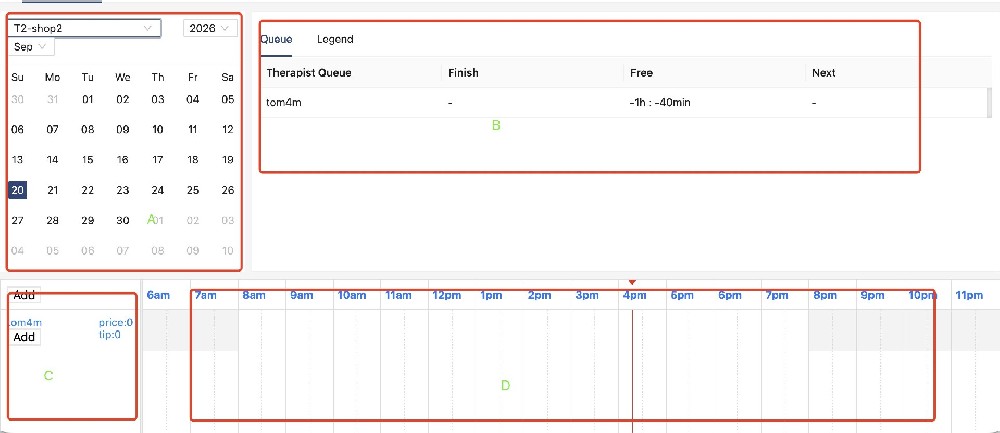
A — Select the date
Use the calendar to choose the day you want to view. The store selector lets you choose the relevant location, while the month and year controls help you move between dates.
B — Check the employee queue
The queue shows employees in order based on when their previous task finished. Employees who finished earlier appear ahead of those who finished later, helping you identify whose turn comes next when assigning work.
C — See who is working
This area lists the employees working on the selected day. Each employee corresponds to a row in the task timeline, so you can quickly find their schedule.
D — Review each employee’s tasks
The timeline displays tasks against the hours of the day. Each task includes:
Task name
Start and end times
Total duration
Task price
This gives you a practical overview of when tasks take place and how work is distributed across the team. The example screenshot shows an empty timeline; task details appear here once tasks have been added.
A simple daily workflow
Select the store and date, check which employees are working, review the queue, then use the timeline to plan and track their tasks throughout the day.
To see how this could fit your business, contact StrongInfo for a demonstration.
A — Select the date
Use the calendar to choose the day you want to view. The store selector lets you choose the relevant location, while the month and year controls help you move between dates.
B — Check the employee queue
The queue shows employees in order based on when their previous task finished. Employees who finished earlier appear ahead of those who finished later, helping you identify whose turn comes next when assigning work.
C — See who is working
This area lists the employees working on the selected day. Each employee corresponds to a row in the task timeline, so you can quickly find their schedule.
D — Review each employee’s tasks
The timeline displays tasks against the hours of the day. Each task includes:
Task name
Start and end times
Total duration
Task price
This gives you a practical overview of when tasks take place and how work is distributed across the team. The example screenshot shows an empty timeline; task details appear here once tasks have been added.
A simple daily workflow
Select the store and date, check which employees are working, review the queue, then use the timeline to plan and track their tasks throughout the day.
To see how this could fit your business, contact StrongInfo for a demonstration.
Let’s talk about your working day.
Tell me about your bookings, team and daily tasks. We can explore a setup that fits your business.