
Employee Rostering: Organise Shifts and Staff Availability
Knowing who is rostered at each store helps you plan the working week. StrongInfo’s employee rostering feature provides two connected views: a weekly overview by store and a shift-editing screen for individual employees.
Use the overview to check scheduled staff, then open the editing screen when you need to adjust their working hours.
View the weekly roster
Select Roster from the top menu to open the weekly overview shown in the first screenshot.
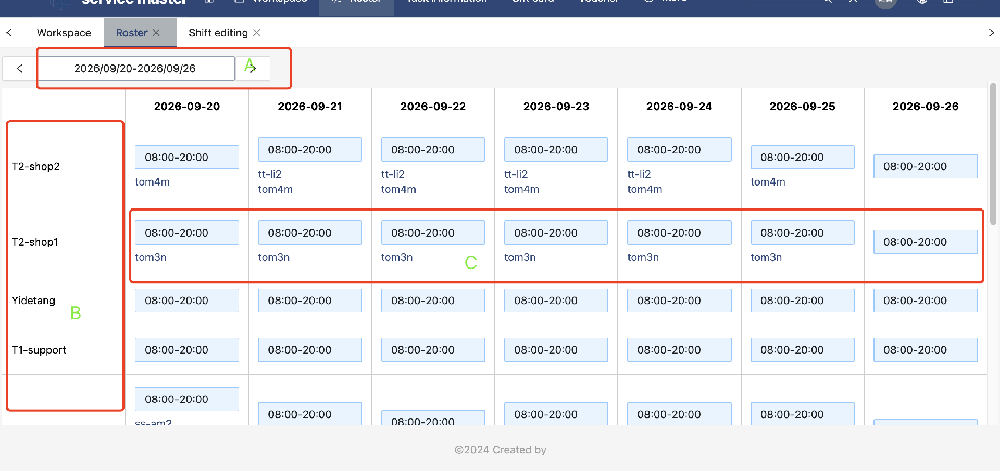
A — Choose the week
The date selector shows the week you are viewing. Use the arrows to move between weeks and check the relevant dates before reviewing or changing a roster.
B — Find the store
Stores appear down the left-hand side. Each store has its own row, making it easier to review staffing across your locations.
C — Check who is rostered each day
The columns show the days of the selected week. Employee names appear under the relevant store and date, so you can see who is scheduled to work.
This is a roster of planned shifts, rather than a record confirming that an employee has clocked in.
Edit an employee’s weekly shifts
Click an employee’s name in the roster overview to open the shift-editing screen shown in the second screenshot.
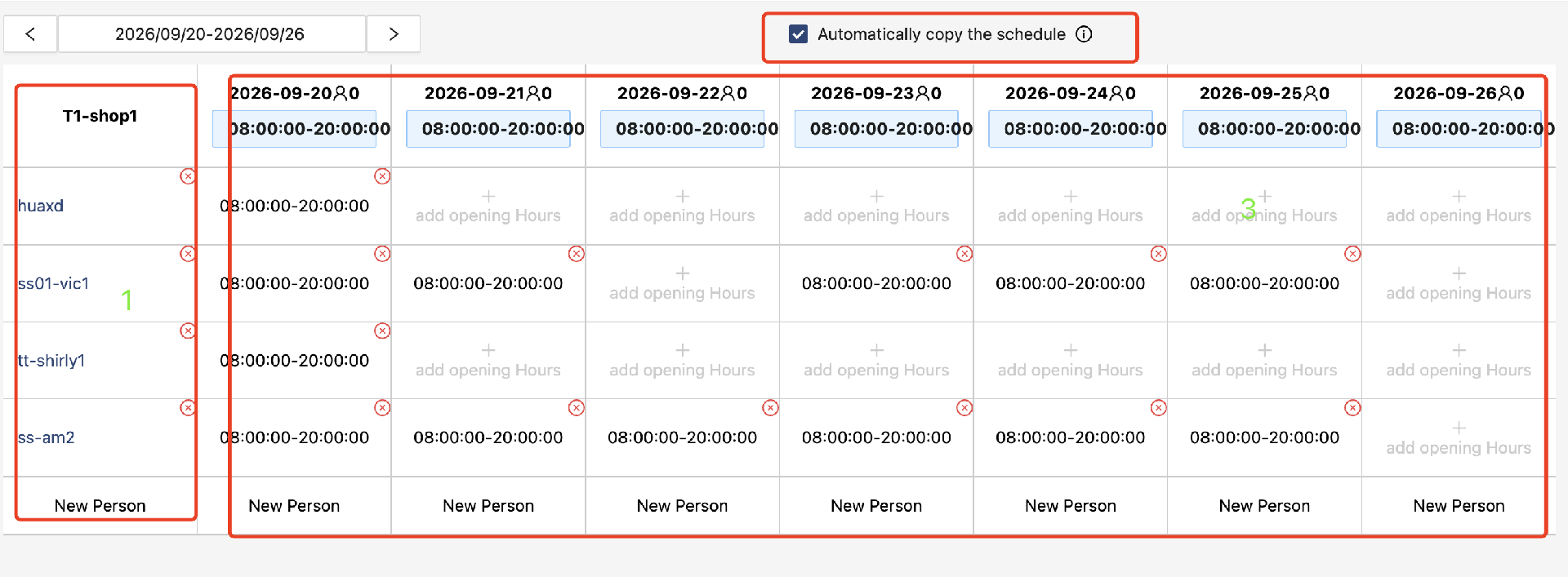
Employee list
The left-hand column lists the employees available to roster at that store. Locate the employee whose working hours you want to review or change.
Daily working hours
The weekly grid shows each employee’s scheduled working times for each day. Read across an employee’s row to review their week, or down a date column to check that day’s staffing.
Use this view to set or adjust working times. A cell without a time entry indicates that no working hours have been entered for that employee on that day.
Repeat a regular weekly schedule
For employees who usually work the same days and hours, select Automatically copy the schedule at the top of the editing screen.
This enables the schedule to be copied automatically each week, reducing repeated roster entry. Review the relevant week when working arrangements change, such as a different start time or a day off.
A practical weekly routine
Open Roster and select the week.
Find the store and check the employees listed for each day.
Click an employee’s name to review or edit working times.
Enable automatic weekly copying when a repeating schedule is appropriate.
Review the roster for any changes before the working week begins.
Rostering helps you organise who will be working and when. Once shifts are planned, the task scheduling view helps you organise each employee’s work throughout the day.
Explore daily task scheduling, or contact StrongInfo to discuss your team’s requirements.
Let’s talk about your working day.
Tell me about your bookings, team and daily tasks. We can explore a setup that fits your business.